Fuel Cart
Your Fuel Cart is empty
Browse the Fuel ShopGetting started in Fuel
Sign in, get the real app, find your chats and meet Fuela. About five minutes.
Do these six steps once, on your phone. Every picture is the real app.
- Sign inOpen insertfuel.com/login and tap Continue with Google, or the account you already use. One tap and you are in.
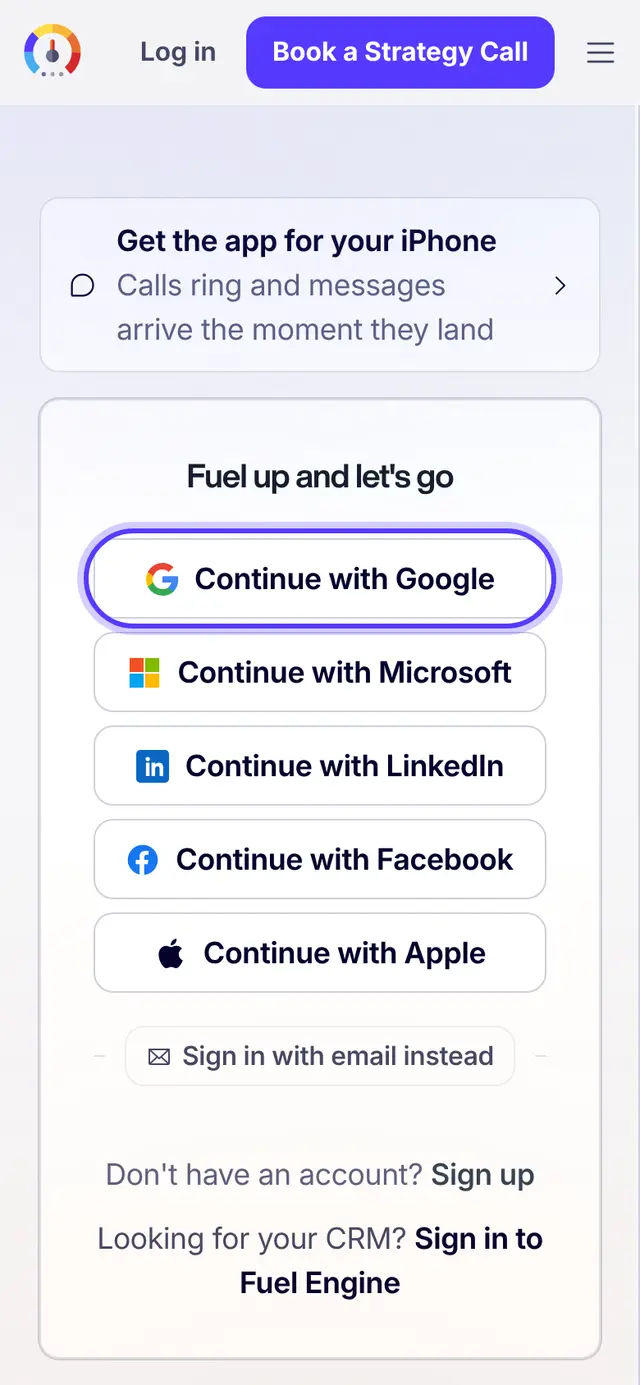
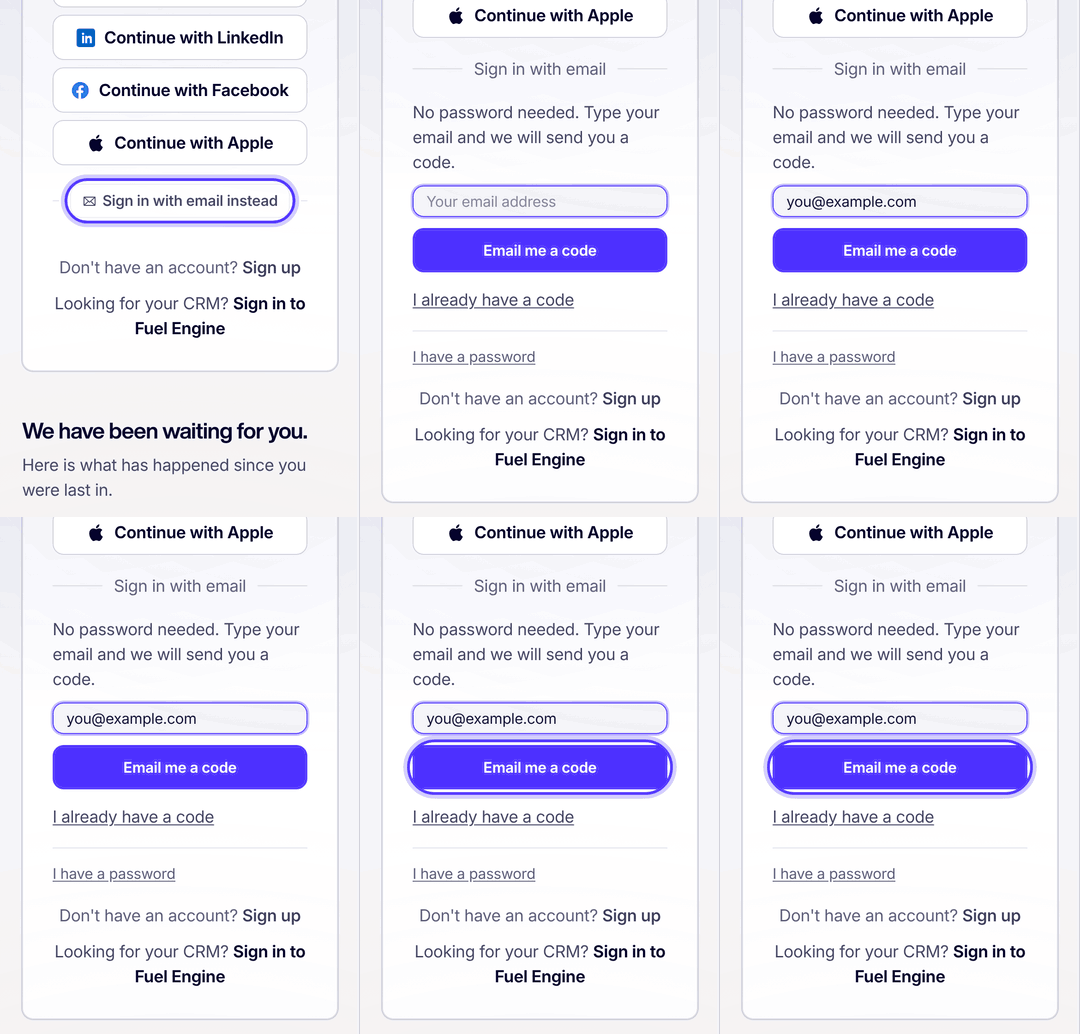
- No Google? Use your emailTap Sign in with email instead, type your email and tap Email me a code. No password needed.
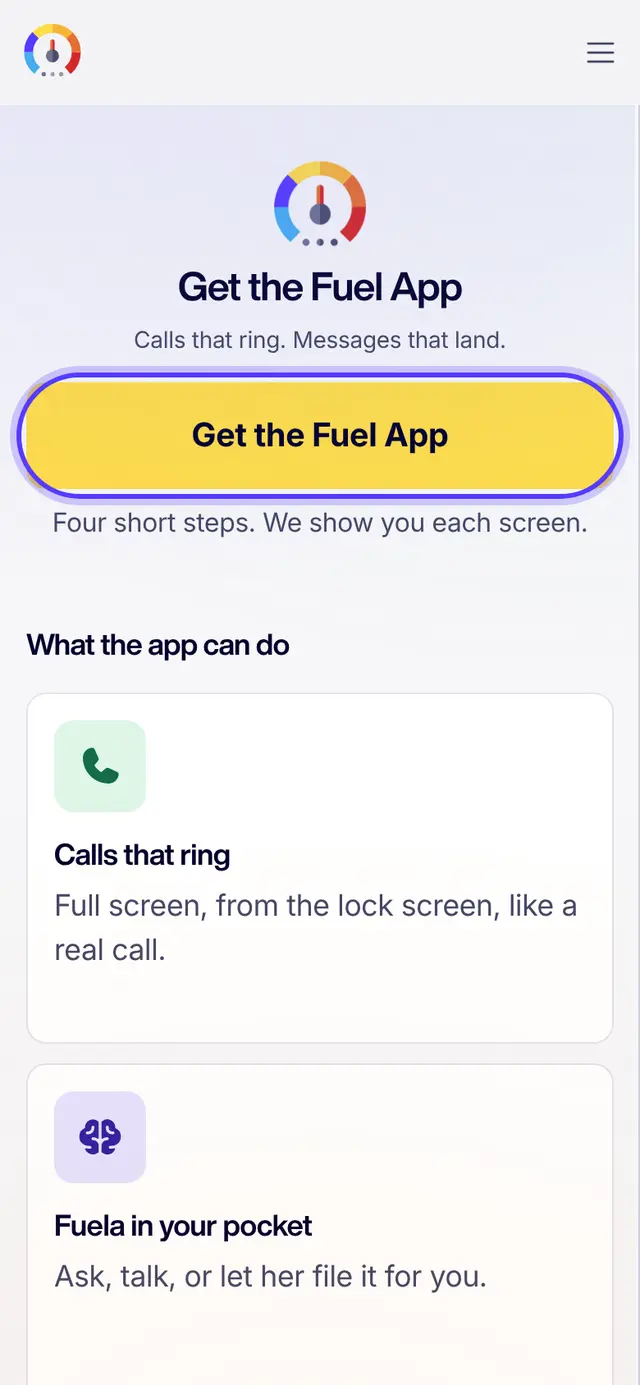
- Get the real app, not a shortcutOn your phone open insertfuel.com/app and tap Get the Fuel App. iPhone installs through TestFlight, Apple's app for new apps. Android downloads straight away. A home screen shortcut is not the app: calls only ring in the real one.
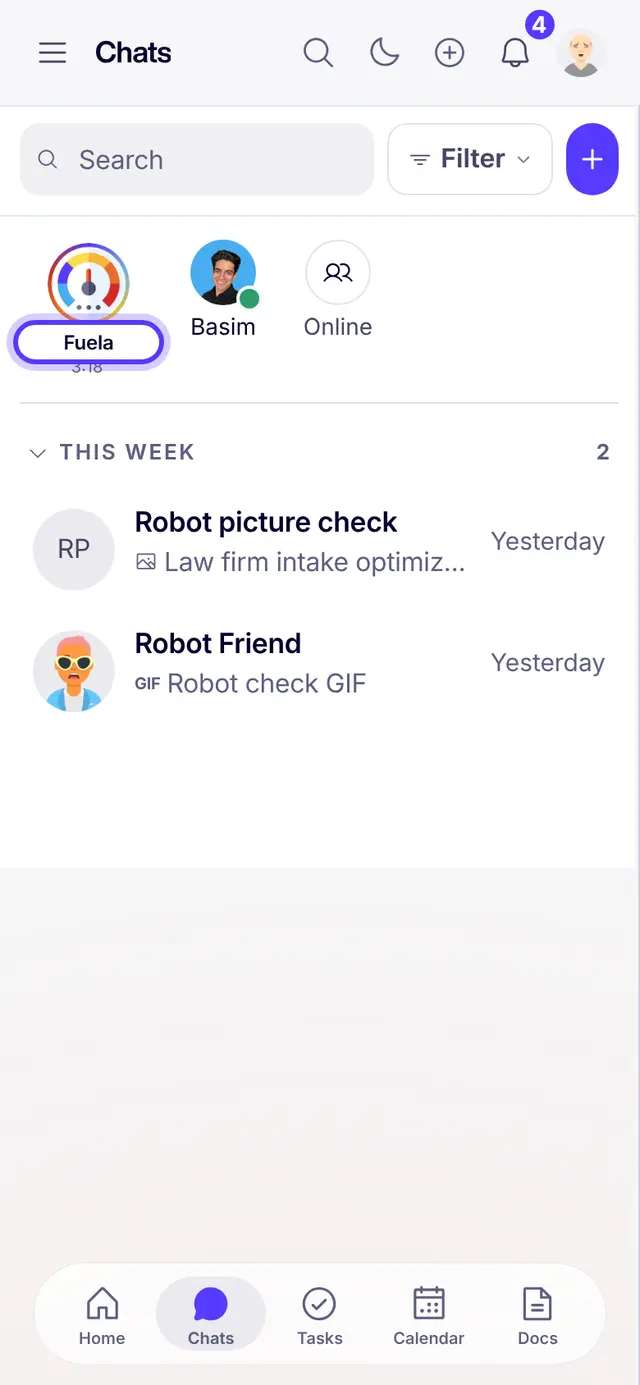
- Open ChatsTap Chats in the bottom bar. Every conversation lives here: DMs, group chats and builder chats.
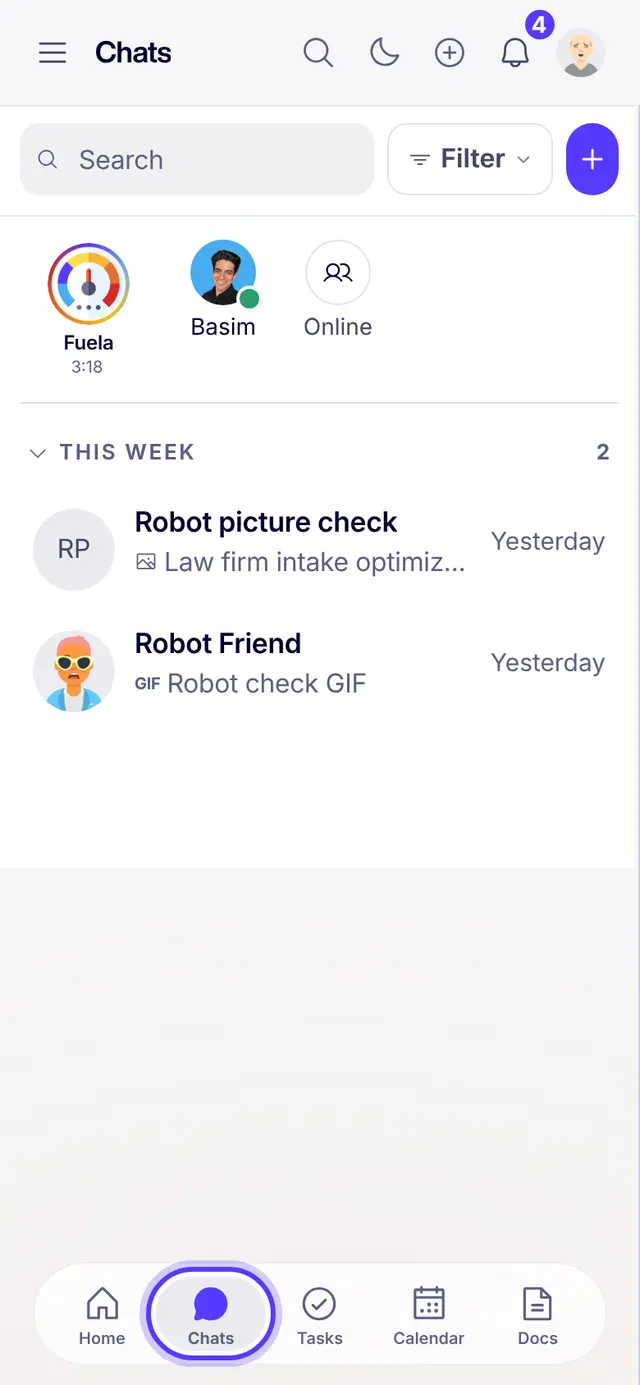
- Fuela is pinned at the topTap Fuela, the first circle in your chats, and ask for anything. The next guide shows how.
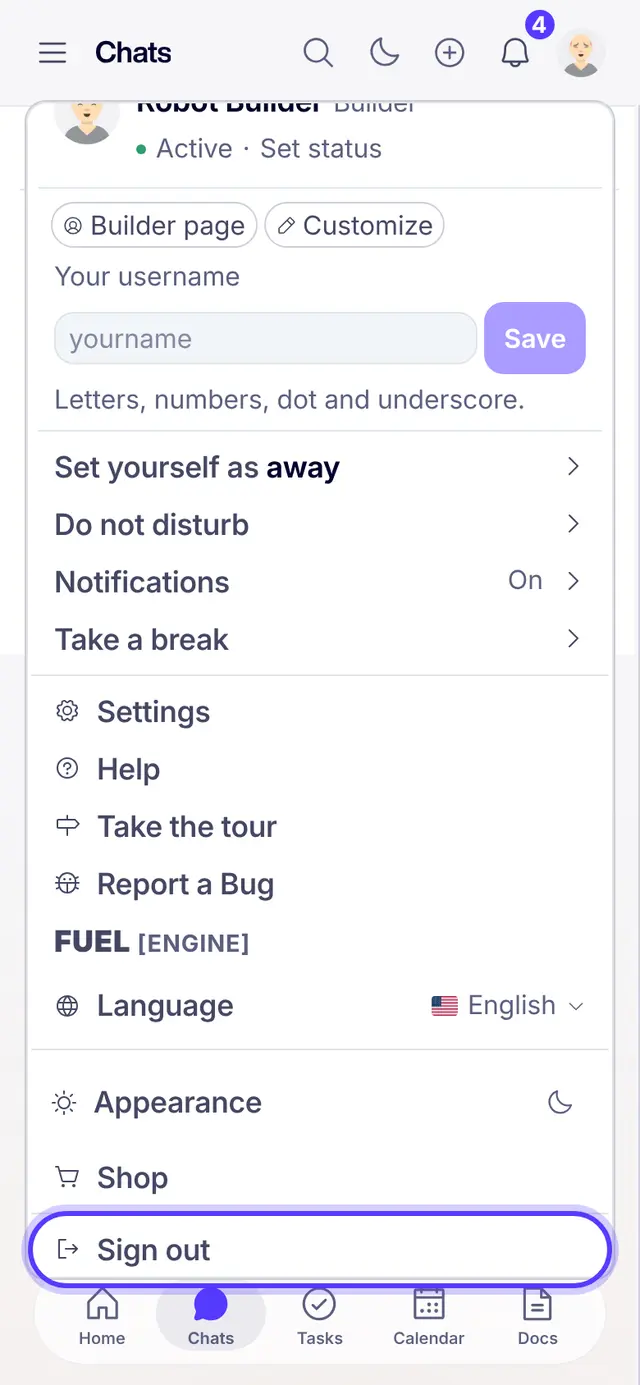
- Language, light or dark, and sign outTap your photo at the top right. Pick your language, switch light or dark, and tap Sign out when you use a shared phone.
Part of Fuel, a whole life OS for your work and your day. Read the overview.
Related articles
- Ask Fuela for anythingType or talk. Fuela makes the task, writes the message and finds the answer.
- Tasks and the board basicsOpen Tasks, read the board, add a task and know what each status means.
- Sell the $997 Fuel Launchpad, step by stepFind the right people, write the first message, follow up, book a Fuel Call and send the Buy link.
- Turn on notifications and callsSo messages and calls reach a locked phone.
Not what you needed? Ask Fuela any hour, or search the library.